
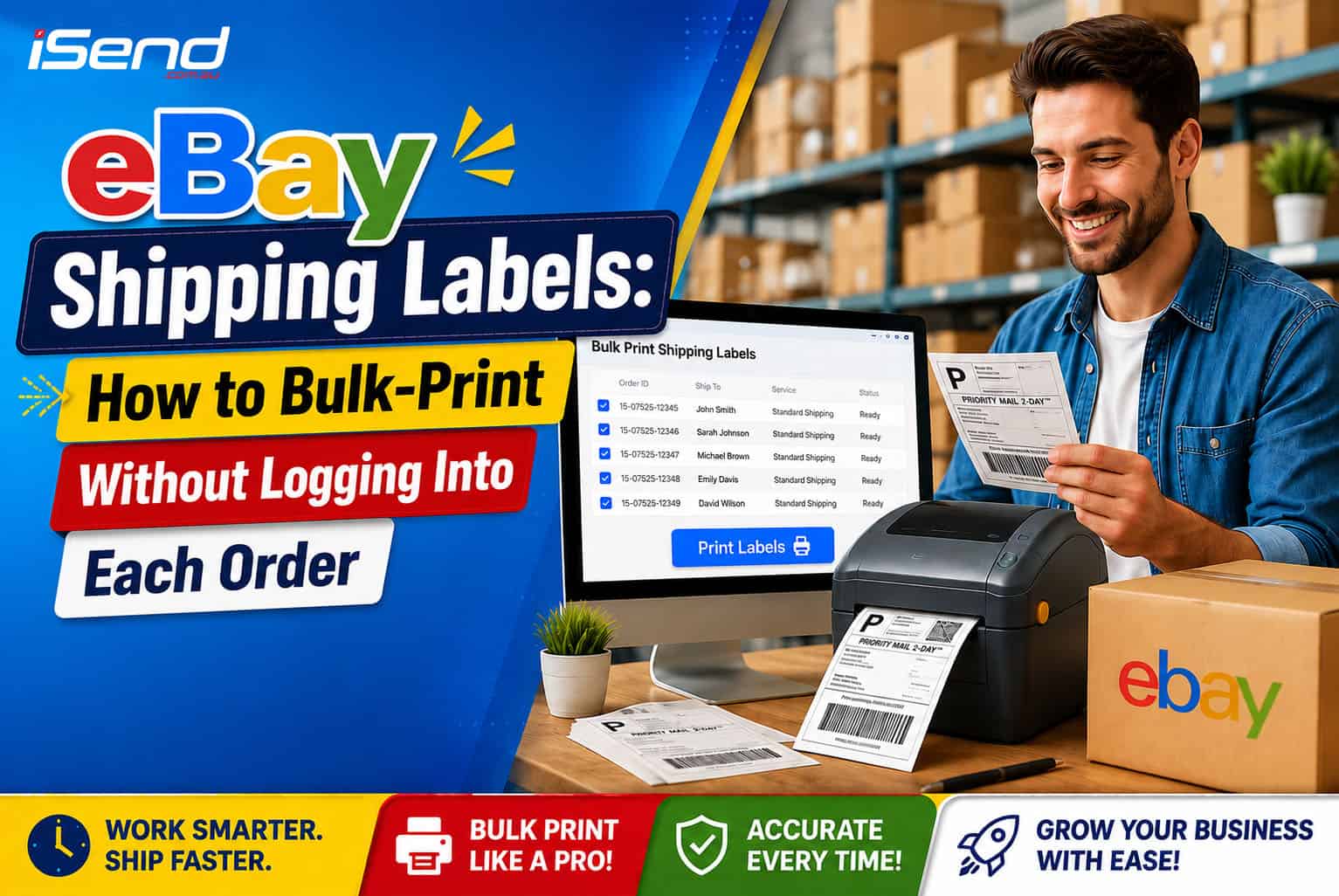
As shipping becomes a daily occurrence, selling on eBay becomes increasingly difficult. It takes time to process every order, buy a label, print it, and go through the whole thing again. Creating eBay shipping labels for each order one at a time is easy, but if you have many orders to ship, there are quicker ways.
Discover quick & easy ways to bulk print eBay shipping labels and streamline your fulfillment process. For a full overview of shipping on eBay Australia, see our eBay Australia Shipping Guide.
Why Printing eBay Shipping Labels One At A Time is Not a Feasible Solution
If you have only a few orders, printing eBay shipping labels one-by-one can be handy. But this approach ceases to be effective as your business grows.
Here are some problems you may encounter:
- Constantly switching tabs
- Multiple logins or session timeouts
- You will have to add same package details multiple times
- Mistakes in label printing will happen if the label is in an inappropriate format
- Difficult to handle large batches during busy sales periods
These little delays add up and so they eat away at the time you have for customer service, inventory management and ultimately the growth of your business.
Method 1: eBay’s Native Bulk Shipping Tool (Seller Hub)
The Seller Hub lets you print several eBay shipping labels at once. Follow these steps to print eBay shipping labels in a batch using the native bulk shipping tool:
Step 1: Open Seller Hub
Find Orders in Seller Hub and select the orders to be shipped.
Step 2: Choose Multiple Orders
Instead of opening orders one at a time, you can tick multiple boxes next to qualifying orders.
Step 3: Purchase and Print Labels
Choose a shipping option, check your package details, purchase labels in SellerHub, and print your labels all in one go.
Step 4: Ship All Packages for One Customer
Combine multiple items in one order to save on shipping costs and streamline the fulfillment process.
Step 5: Create SCAN Form
After printing shipping labels from eBay, create a SCAN form. This will allow you to scan one barcode rather than several barcodes on packages during the pickup.
Additional Note for eBay Australia
The Seller Hub is available for eBay Australia as well. But some carriers may not be available depending on integration. Sellers can use some other shipping platform to compare more courier services.
The Limitations of eBay’s Built-In Bulk Tool
Although Seller Hub is convenient for many sellers, some limitations make it less effective as order volume increases.
Some limitations are:
- Limited to supported shipping services on eBay
- Fewer chances to compare rates for different couriers
- There are no higher levels of package preset
- Additional steps may limit bulk reprinting of labels
- Less flexible in working with orders from different sales channels
Businesses shipping high order volumes often need greater automation than Seller Hub provides.
Method 2: Bulk-Print eBay Labels Without Logging Into Individual Orders
Utilize a multi-carrier shipping platform to streamline fulfillment through a single dashboard, enabling you to process multiple orders in a fraction of the time. In just a few clicks, you can import orders, compare shipping rates, and print a lot of labels.
Step 1: Connect Your eBay Store Once
Set up your eBay account one time. Future orders will be imported automatically, you will not have to download them manually.
Step 2: Auto-Import All Orders
You can view every new order right there in one central dashboard so you don’t have to open each listing.
Step 3: Set Package and Courier Presets
Set up presets for those commonly used package sizes, shipping methods, and courier preferences. This eliminates tedious data entry for every shipment.
Step 4: Select Orders in Bulk and Compare Live Rates
Pick out several orders, see actual shipping rates from different carriers, and pick the best choice yourself. This helps lower shipping costs and gives you more delivery options. See how to compare courier rates in Australia.
Step 5: Generate Labels in One Click
Once you’ve set things up, generate all labels for eBay shipping at once rather than doing them one by one.
Step 6: Tracking Automatically Syncs Back to eBay
Your tracking numbers are uploaded automatically right after creating the labels – keeping your buyers properly informed without needing to make any manual changes themselves. This workflow cuts out nearly all those repetitive tasks while speeding up your shipping process.
eBay Native Tool vs Multi-Carrier Platform: Quick Comparison
Both solutions simplify shipping, yet they differ in terms of flexibility and automation. Below, you’ll find a comparison of the eBay bulk shipping tool and a multi-carrier shipping platform to help you pick the right solution.
| Feature | eBay Seller Hub | Multi-Carrier Shipping Platform |
| Bulk printing | Yes | Yes |
| Multiple carrier comparison | Limited | Yes |
| Saved package presets | Limited | Yes |
| Automatic order import | eBay only | Yes |
| Tracking sync | Yes | Yes |
| Multi-channel support | No | Yes |
| Courier flexibility | Limited | Extensive |
| High-volume shipping | Moderate | Excellent |
Choosing the Right Printer for Bulk eBay Labels
The best eBay shipping label printer depends on how many orders you need to ship every day. For occasional sellers, regular inkjet or laser printers should suffice. For a detailed breakdown of all printing options, see our guide on how to print shipping labels.
High-volume sellers are better off with thermal printers, since:
- They print much faster
- Don’t require any ink or toner
- Generate waterproof labels
- Have lower operational expenses
- Work well with common 4×6 shipping labels
If you want to choose the best thermal printer for eBay shipping labels, ensure:
- Compatibility with 4×6 labels
- Printing speed
- USB/wireless connectivity
- Shipping software compatibility
- Good print quality for barcode scanning
When you print dozens of labels a day, a thermal printer is the most cost-effective choice.
FAQs
How much are shipping labels on eBay?
The cost depends on the carrier, package size, destination, shipping service, and seller’s discount. Usually eBay gives commercial shipping rates lower than those used by retail buyers.
How do I get a shipping label on eBay?
Open your sold item on eBay Seller Hub, click Print Shipping Label, select a carrier and shipping service, confirm all the package details, buy the label, and print it. This is the standard process for how to get a shipping label on eBay.
Do I have to buy a shipping label from eBay?
No. You can purchase labels through third-party shipping platforms or directly from carriers compatible with eBay, if they meet shipping requirements.
Do I have to pay for an eBay shipping label?
Yes. If another person doesn’t pay for shipping, purchasing an eBay shipping label involves certain costs depending on the chosen shipping service and carrier.
Do I have to print a shipping label on eBay?
No, eBay doesn’t require you to print eBay’s shipping label through its website. However, you can produce and print your shipping labels using other third-party shipping software compatible with eBay and then upload all the tracking details to your eBay listing.
Do I have to use eBay’s shipping label?
No. Sellers are free to use external shipping companies, provided they meet delivery requirements and provide valid tracking information.
How do I get a shipping label for an eBay return?
If a return request is granted, shipping labels may be supplied by eBay or the seller according to the seller’s return policy and the nature of the return shipping charges. The buyer can then access and print the return shipping label.
Common Bulk-Printing Mistakes to Avoid
Small mistakes can cost you extra time and additional label reprints. Here are some common errors to avoid when bulk printing:
- Printing on incorrect label size and using wrong printer settings
- Not combining multiple orders from the same buyer
- Printing labels before the order is completely paid for
- Not filling out the SCAN form while preparing large carrier pickup
- Using outdated package dimensions or shipping presets
Sparing just a few minutes to double-check all these details before printing will help you reduce fulfillment mistakes, save money on unnecessary reprints, avoid shipping delays, and streamline order processing as a whole.
Conclusion: Ship Faster With iSend’s eBay Integration
Order management becomes easier once you eliminate repetitive manual labor. Although eBay Seller Hub supports basic bulk printing functionality, growing businesses may need a separate shipping platform that helps them import orders, compare carrier rates, create labels instantly, and sync tracking with eBay.
With iSend’s eBay integration, sellers can automate their fulfillment process, reduce shipping time, and process more orders within one central dashboard. Whether you’re handling a few shipments a day or hundreds, a bulk shipping process makes your business operations faster, easier to organize, and scalable.
Recent Posts



How to Handle Back Orders Without Wrecking Your Delivery Times
October 7, 2026

Top 7 Shipping Software for eCommerce Businesses in 2027
September 23, 2026